Clone a Git repository into a specific folder
This post will discuss how to clone a Git repository into a specific folder.
The standard approach to clone is repository is using the git-clone command. But when you simply clone a repository with git clone <repository>, it creates a new directory with repository name at the current path in the file system and clones the repository inside it.
If you want to clone the remote repository into a specific directory, you can specify its path:
Here, <path> is the path of the directory to clone into. This is demonstrated below, where cloning is done into an existing local directory.
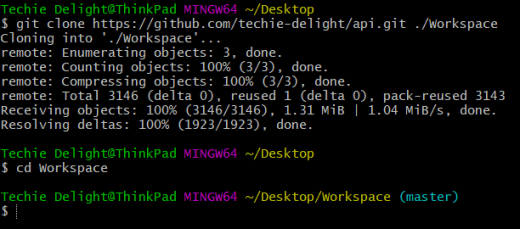
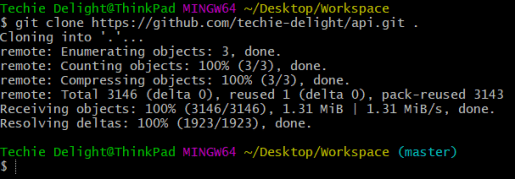
If you want to clone the git repository into the current directory, you can do like:
Here, the dot (.) represents the current directory.
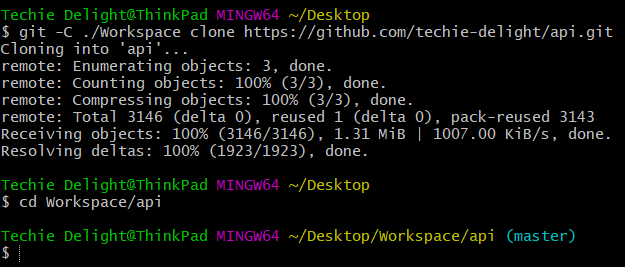
Alternatively, you can use the git [-C <path> as the current working directory.
Note that this creates a new directory with repository name at the specified directory and clone the repository inside it, as shown below:
However, you can only clone into an existing directory only when it is empty. Otherwise, git will complain that the destination path already exists and is not an empty directory.

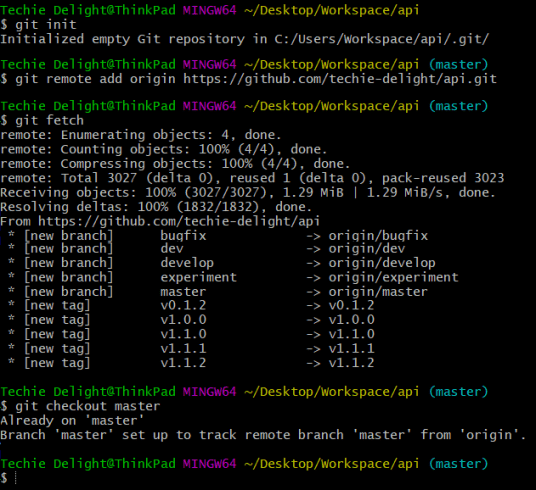
If the destination is not empty, you can do like:
$ git init
# add a remote named origin for the repository at <repository>
$ git remote add origin <repository>
# do a git-fetch
$ git fetch
# check out the master branch
$ git checkout master
This approach is demonstrated below:
That’s all about cloning a Git repository into a specific folder.
Thanks for reading.
To share your code in the comments, please use our online compiler that supports C, C++, Java, Python, JavaScript, C#, PHP, and many more popular programming languages.
Like us? Refer us to your friends and support our growth. Happy coding :)