Clone a specific Git branch
This post will discuss how to clone a specific Git branch.
1. git-remote add
To clone a branch without fetching other branches, you can use the git-remote add command with git-fetch.
$ git init
# Adds a remote named <name> for the repository at <repository>
$ git remote add <name> <repository>
# fetch branch <name>/<branch>
$ git fetch <name> <branch>
# Check out your branch
$ git checkout <branch>
The following example first creates and initializes an empty git repository. Then it adds a remote named origin for the specified repository and fetches the specified branch from the origin.
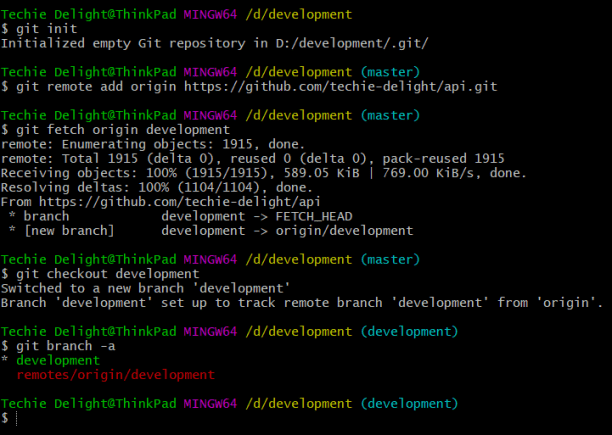
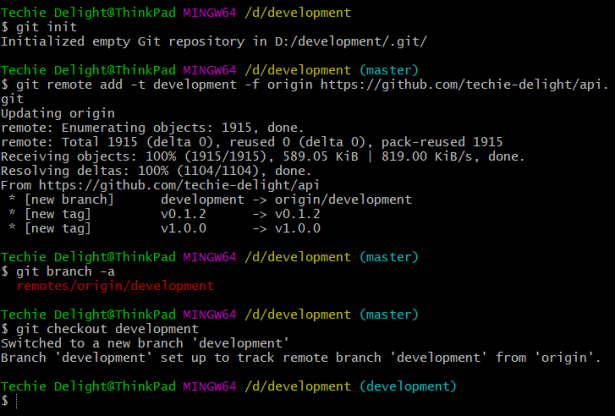
The git-fetch command can be skipped when -t <branch> and -f option is passed to git-remote. With -f option, git fetch <name> is run immediately after the remote information is set up.
This is demonstrated below:
2. git-clone
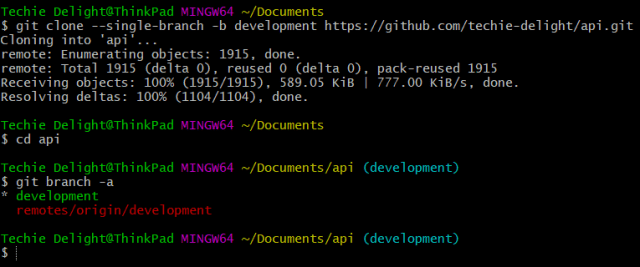
The most common approach to clone a repository is to use the git-clone. You can pass the --single-branch flag, which prevents fetching all the branches in the cloned repository. With the --single-branch flag, the branch specified by the --branch option is cloned. When no branch is specified, the master branch is cloned.
This is demonstrated below:
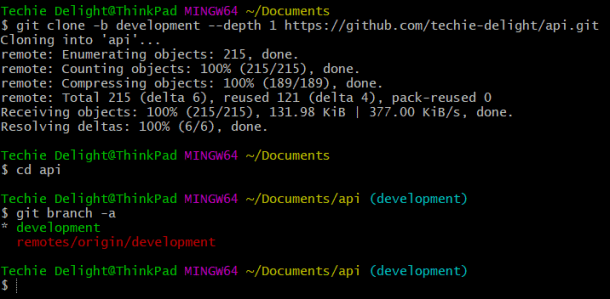
Alternatively, you can specify the --depth option, limiting the total number of commits to be downloaded to the specified depth. It implies --single-branch by default.
Here’s an example:
That’s all about cloning a specific Git branch.
Thanks for reading.
To share your code in the comments, please use our online compiler that supports C, C++, Java, Python, JavaScript, C#, PHP, and many more popular programming languages.
Like us? Refer us to your friends and support our growth. Happy coding :)